1. Open the record and click Edit
Click the knife's card in Collection, then choose Open full page → in its preview. At the top right of the record, click Edit:

The record initially shows its saved specifications, notes, images, and source link:
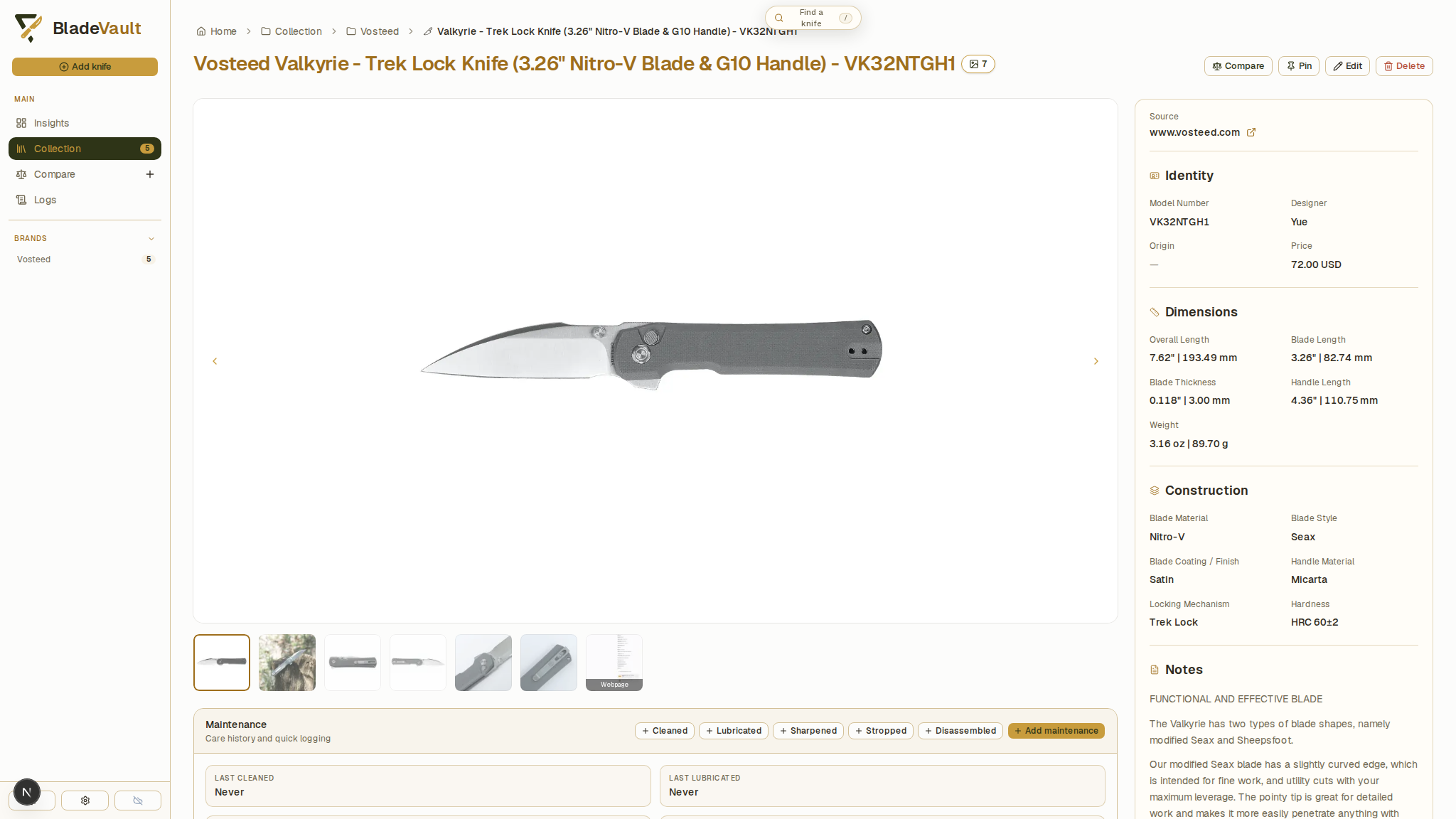
Click Edit to open the Edit Knife form.
2. Fill in what the page does not state
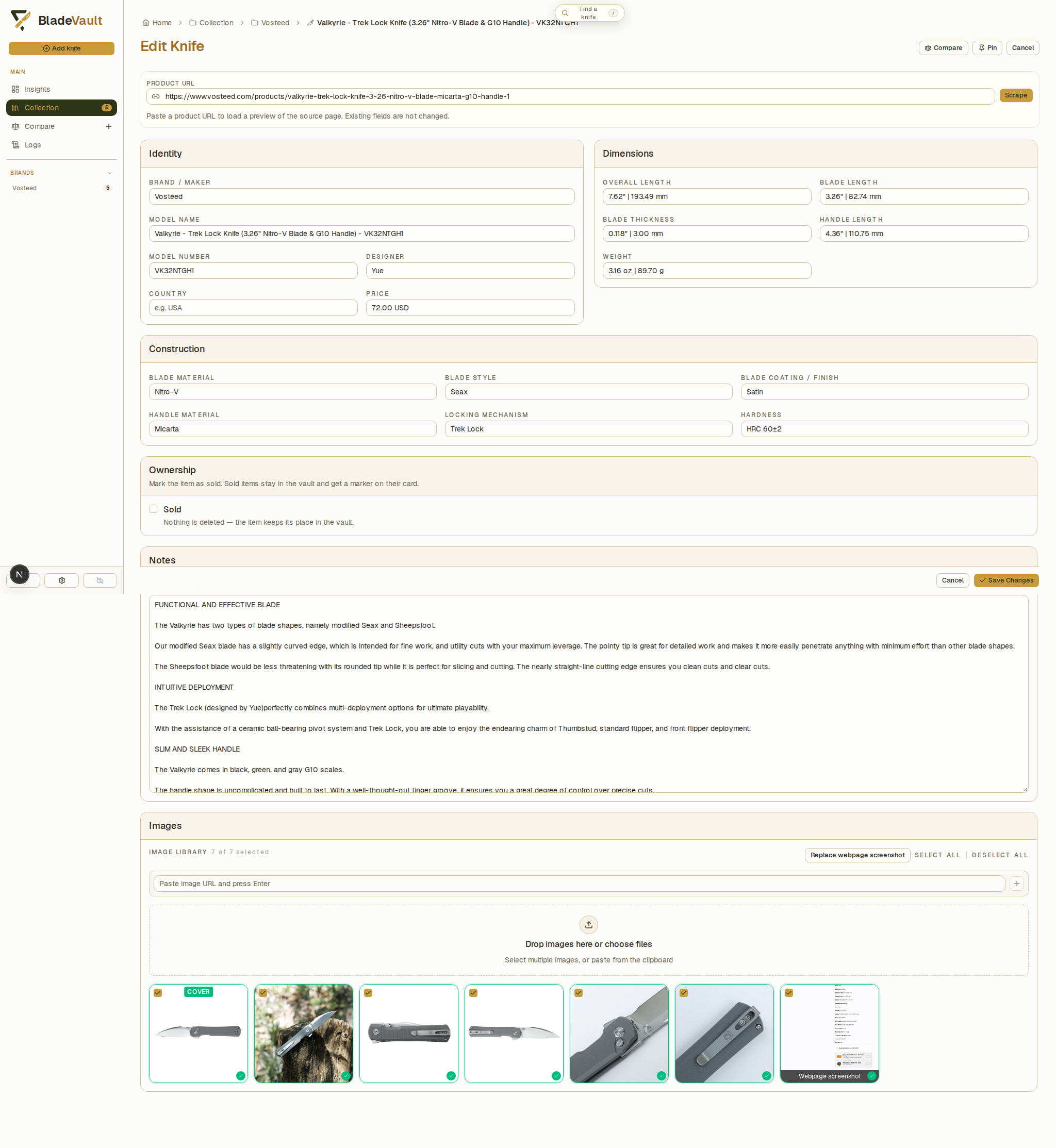
The Edit Knife form contains these sections:
- Product URL — the page the knife was imported from, kept on the record so you can see where a value came from.
- Identity, Dimensions, Construction, Notes — every field, prefilled with what the import read off the page.
- Images — review the saved photos and webpage capture, select images to keep, choose a cover, and reorder or remove images.
- Ownership — mark the knife Sold when it leaves the collection; it stays in the vault with a marker on its card.
The Valkyrie's page lists Blade Style: Seax and Finish: Satin in separate rows. The import places Seax in Blade style, Satin in Blade coating / finish, and 72.00 USD in Price. Because the page does not state a country of origin, Country is blank.
For this example, enter China in Country after verifying the origin separately. Leave the other fields as they are:
3. Save the changes
At the bottom right of the edit form, click Save Changes:
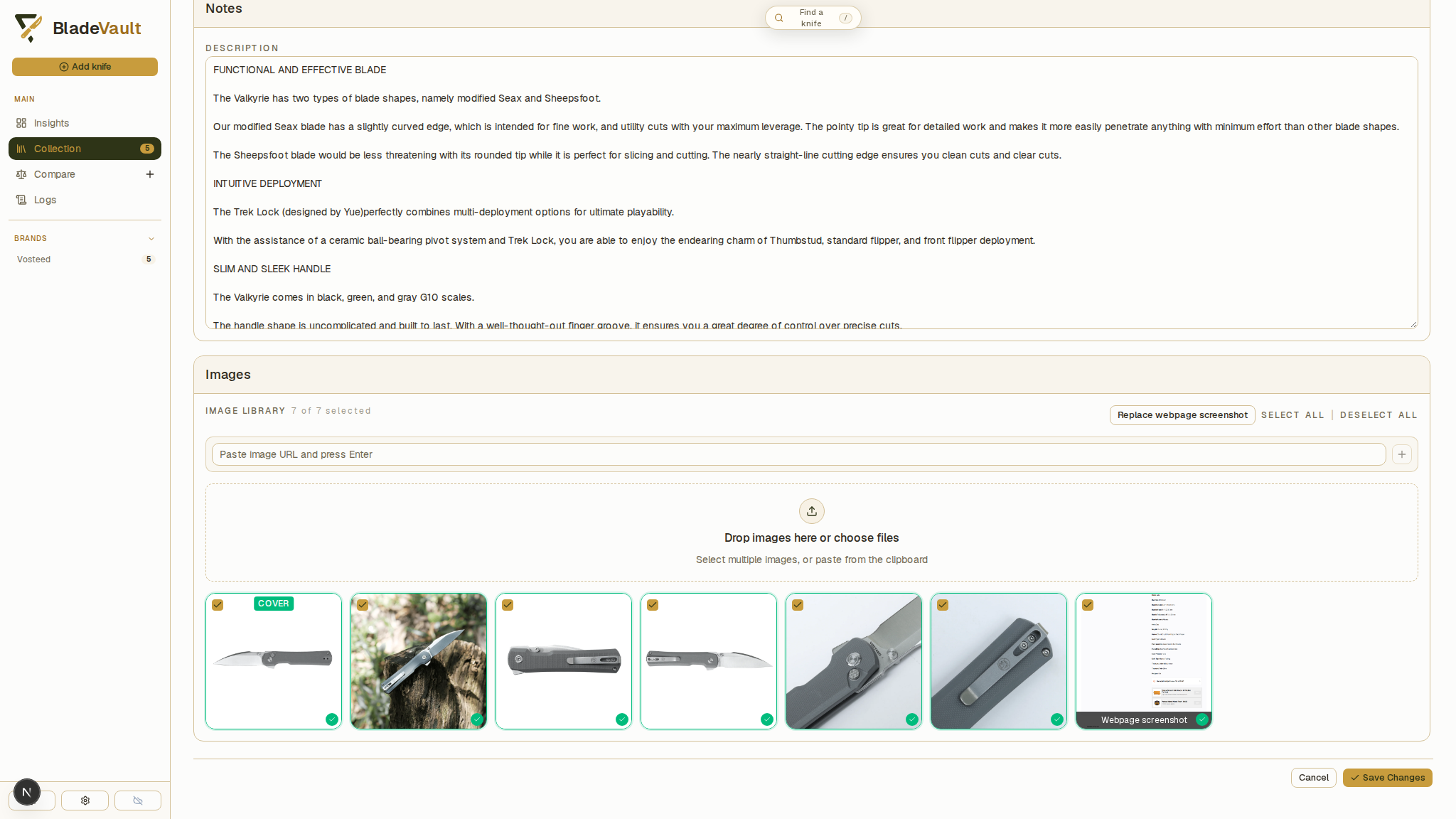
Save Changes saves your edits and returns you to the record.
4. See the completed record
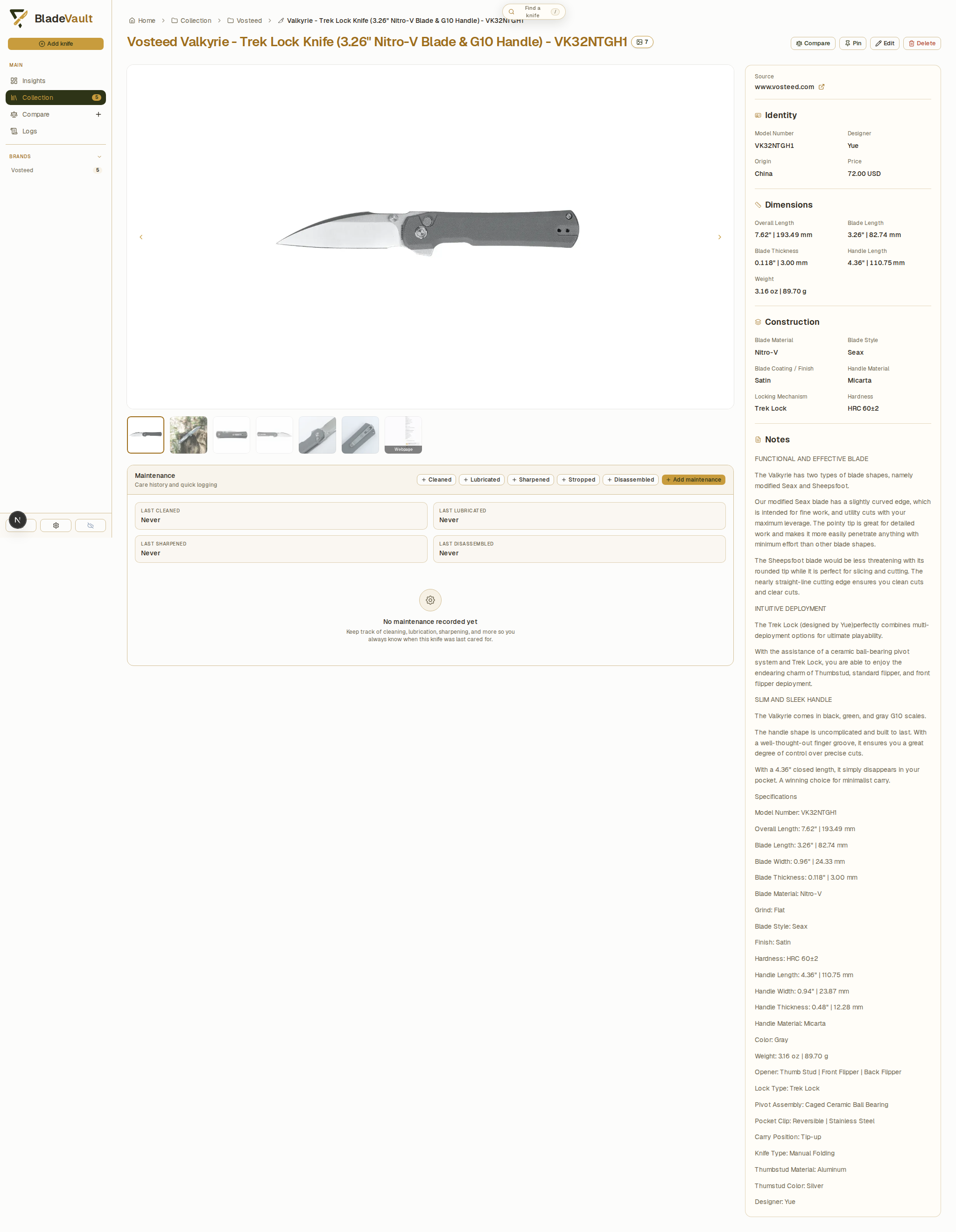
Origin now reads China. The other saved values remain: Blade style is Seax, Blade coating / finish is Satin, and Price is 72.00 USD. The Source link still opens the original product page. If the import captured that page, you can also review its saved screenshot in the gallery. See Capture source pages.
Mark a knife as sold or delete a record
To keep the knife's details and history after selling it, open Edit, enable Sold under Ownership, and save. Clear Sold and save again if you need to reverse the status.
To remove a record, return to its detail view, click Delete, and confirm. Deletion cannot be undone from the app. Download a backup first if you may need the record later.
Related
- Log maintenance and sharpening — record care tasks and review the knife's maintenance history.
- Compare — a knife can be added to several named shortlists; see Compare knives.
- Edit and pin several knives at once — update a shared value across selected records.
Next
- Capture source pages — the full-page screenshot behind an import.
- Your data — where the vault lives, and how to back it up.