1. Click Add knife
Click Add knife at the top of the sidebar:

The form opens on the Scrape URL tab. To enter a knife without a product page, use Manual. See Add a knife manually.
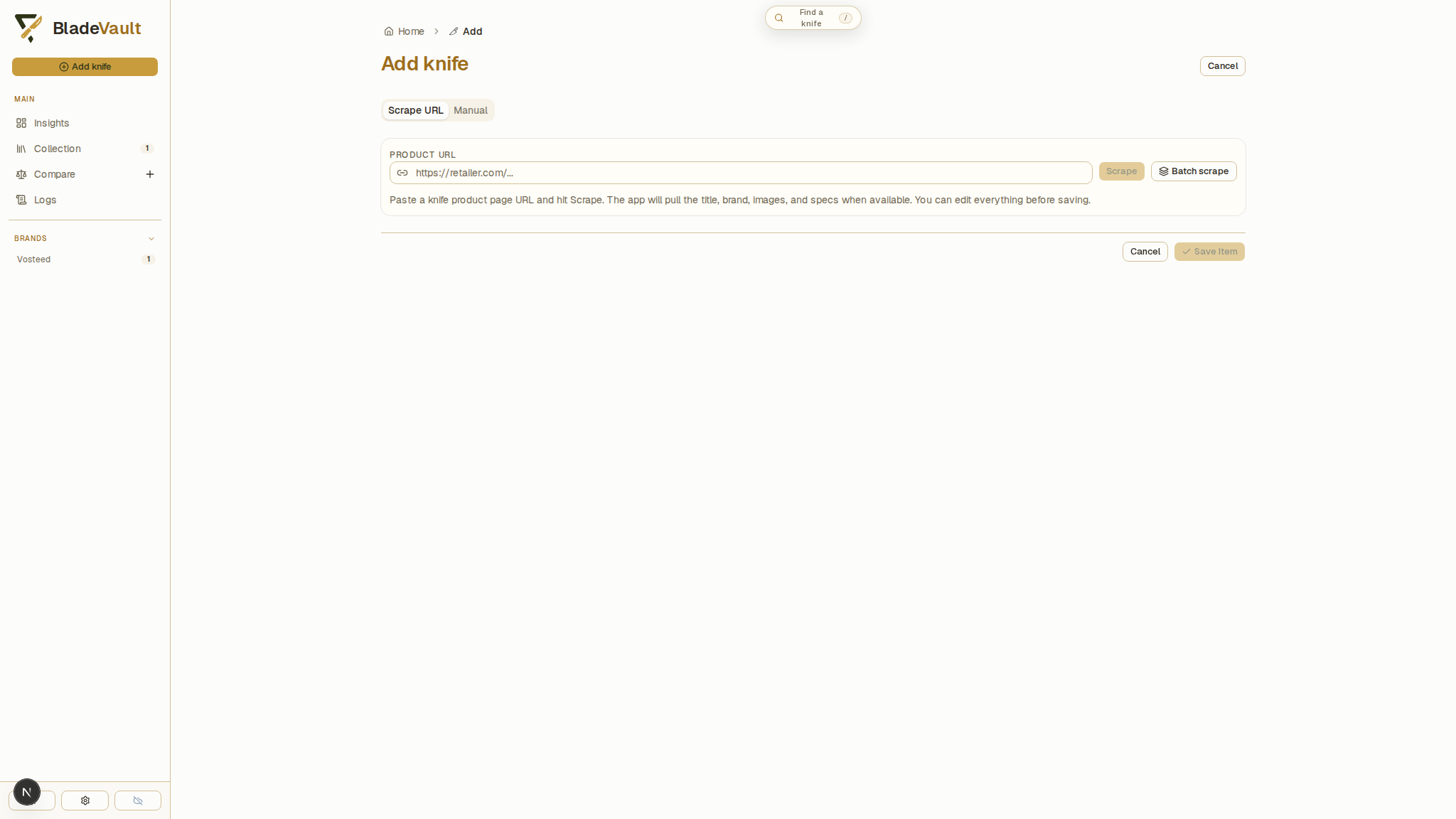
2. Paste the product URL and click Scrape
Paste the retailer's product URL into Product URL and click Scrape, or press Enter. BladeVault opens the page in a browser and reads its title, brand, images, and specifications.
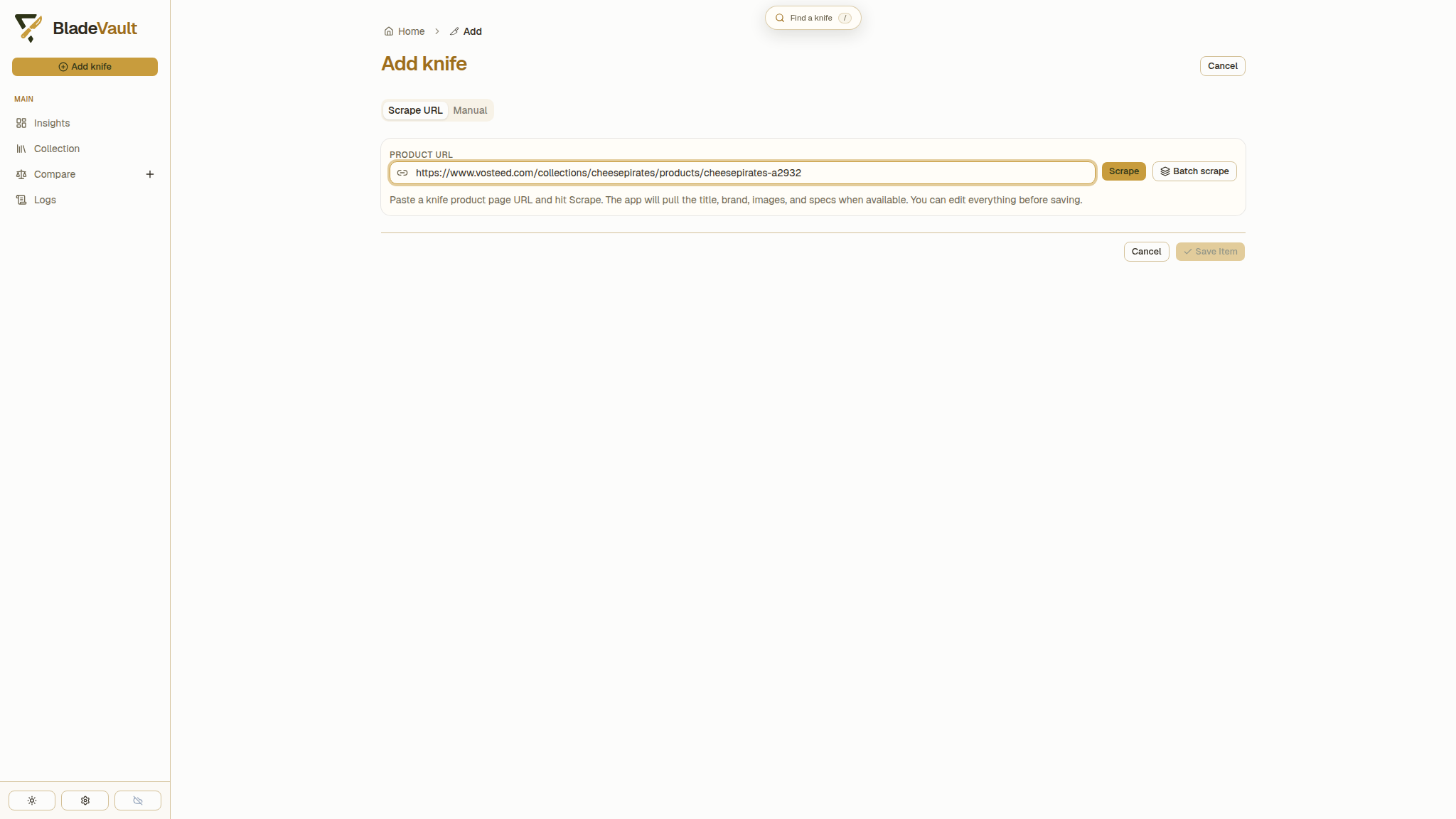
3. Check what the import filled in
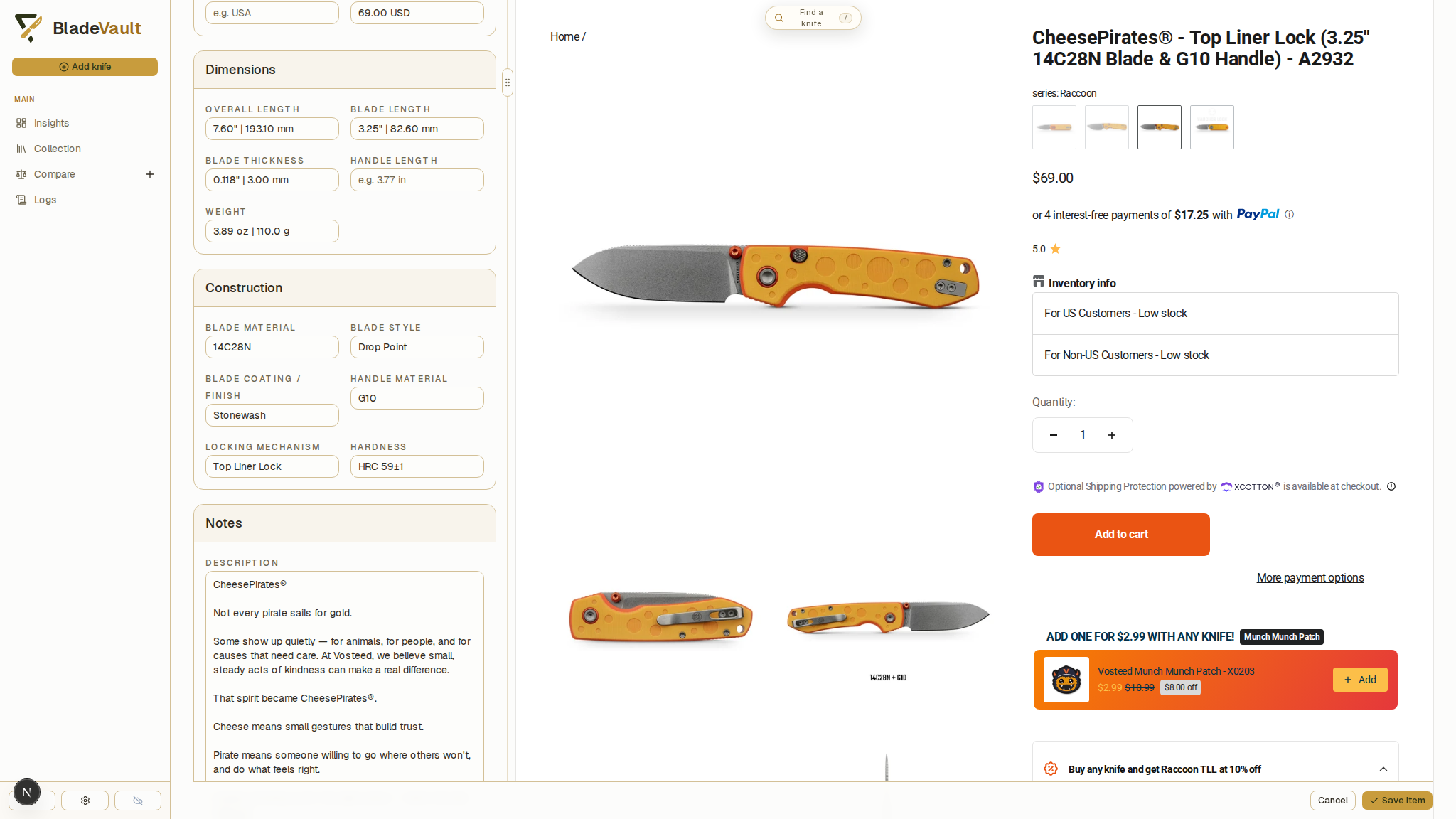
Review the imported identity, price, dimensions, construction details, and description. A field can remain empty if the page does not provide a clear value. This example lists two handle lengths for different variants, so the import leaves that field blank and explains why. Every field stays editable. Use Scraped page preview beside the form to check a value against its source.
4. Choose the images to keep
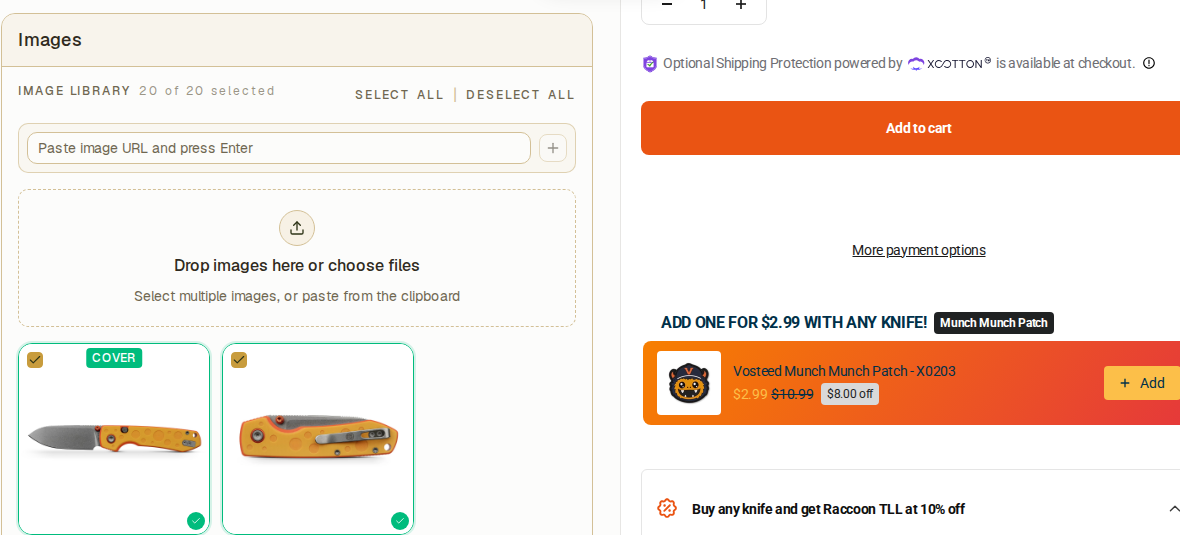
Product images are stored in the vault when you save the record and are included in ZIP backups and cloud backups. Deselect images you do not want, choose a cover, and reorder or remove images as needed. You can also add your own photos or image URLs.
5. Save the knife to your collection
At the bottom right of the form, click Save Item:
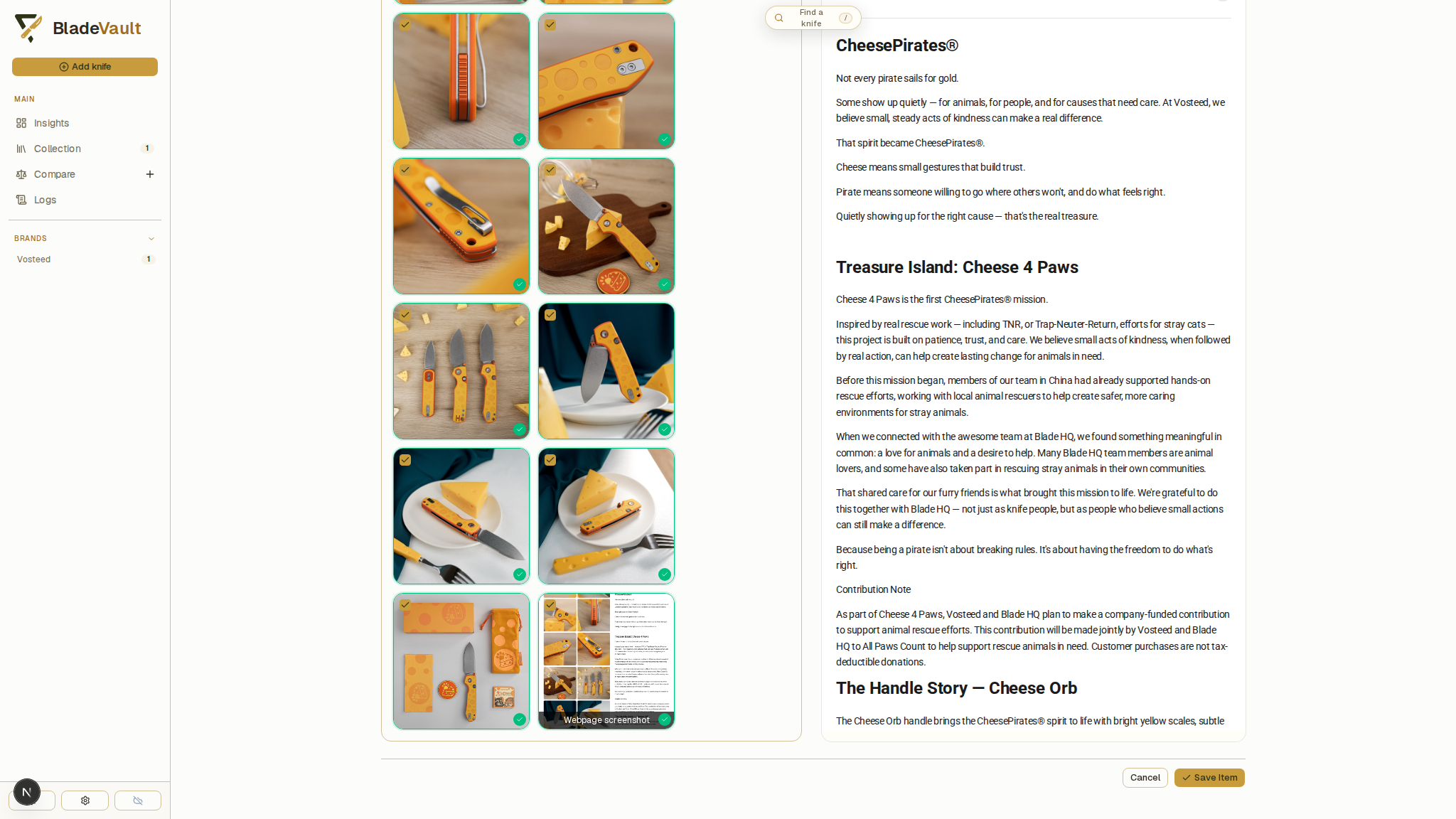
Save Item saves the record and returns you to Collection.
6. See the saved knife
Click the new knife's card in Collection, then choose Open full page → in its preview to review the saved details:
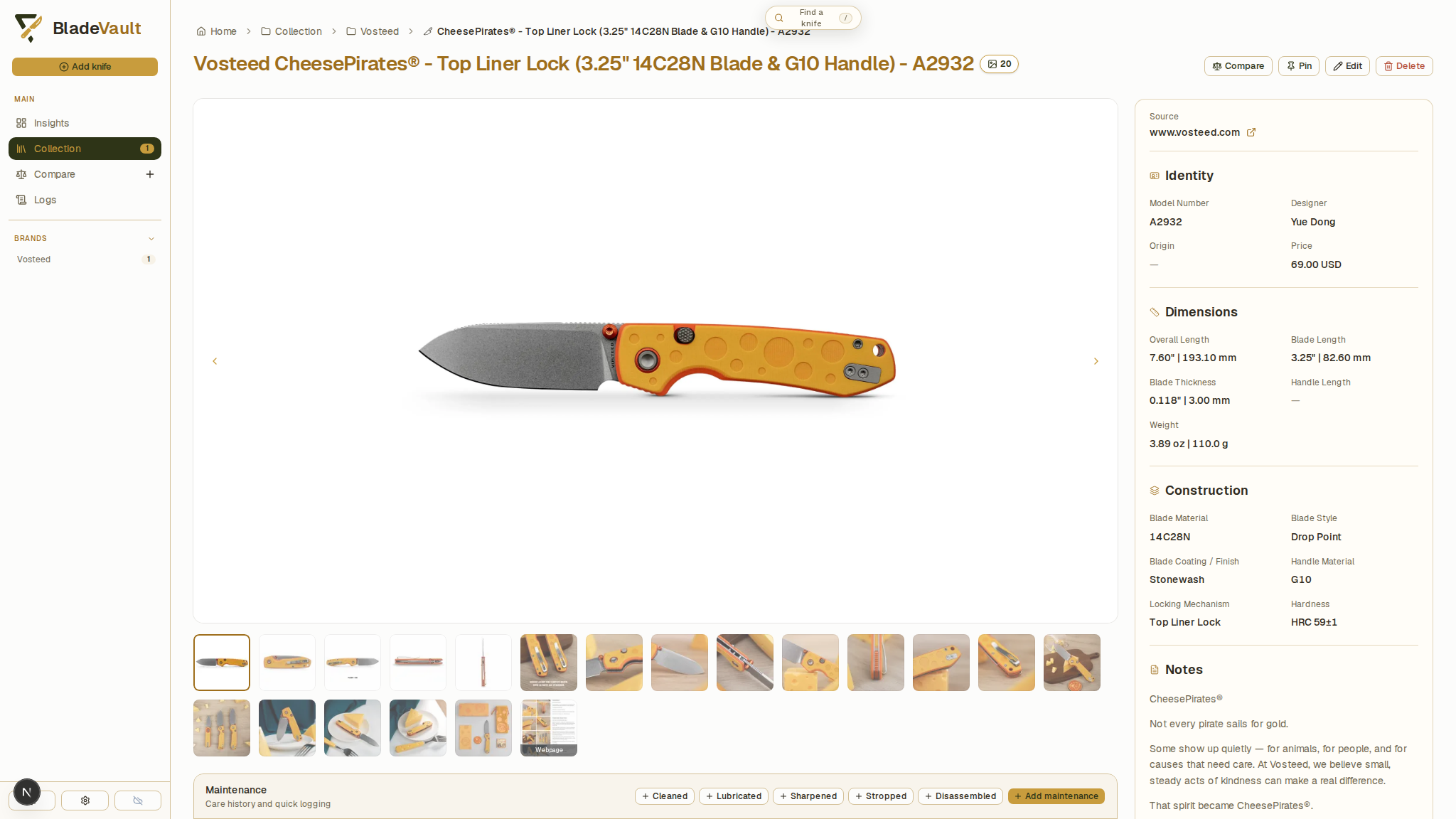
The record contains the saved specifications, images, source link, and notes. You can edit these details later.
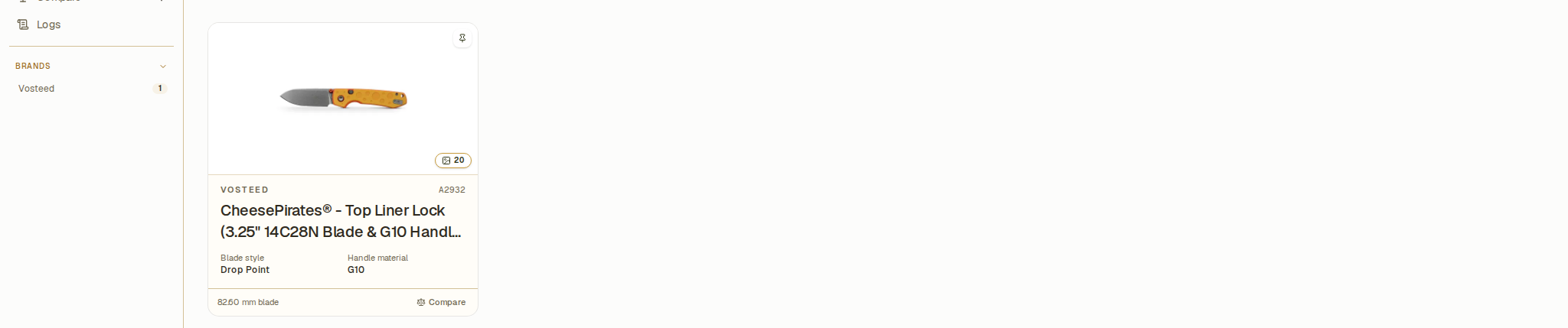
The knife also appears as a card in Collection.
Add several links at once
Batch scrape imports a list of product URLs one at a time. Products already saved from the same source URL are skipped. See Add several knives at once for the full walkthrough.
Add a knife manually
Use Manual for a gift, a custom build, or an older knife without a product page. You can enter specifications, price, notes, a source link, and local photos. See Add a knife manually.
When a retailer blocks the import
Some sites block automated access or display popups over the product details. BladeVault removes recognizable newsletter and cookie overlays before capturing the page. Use Hide popups in the preview to hide remaining dialogs, or Restore original to return to the imported preview. These actions preserve your form edits.
If the page needs a click or a verification step, choose Interact with page beside the URL. Complete the step in the browser window, then click Continue to refresh the import in the same form. Your manually edited fields and image selections are preserved. The browser window opens on the computer running BladeVault. A browser inside a remote container is not streamed to your screen.
Capture the source page
BladeVault can also save a permanent full-page screenshot of the page a record came from — the knife imported above has one. See Capture source pages.
Requirements
- From source: install Chromium (
npx playwright install chromium) so URL import and capture can run. - Docker, desktop, Kubernetes: the shipped image and desktop build already include the browser runtime.
Next
- Update a saved knife — correct and extend what an import wrote.
- Organize your collection — custom fields, cards, and Smart Collections.
- Capture source pages — keep the page you imported from.