1. Paste the links
Click Add knife at the top of the sidebar, then click Batch scrape next to the URL field. Paste one link per line in the order you want to import them.
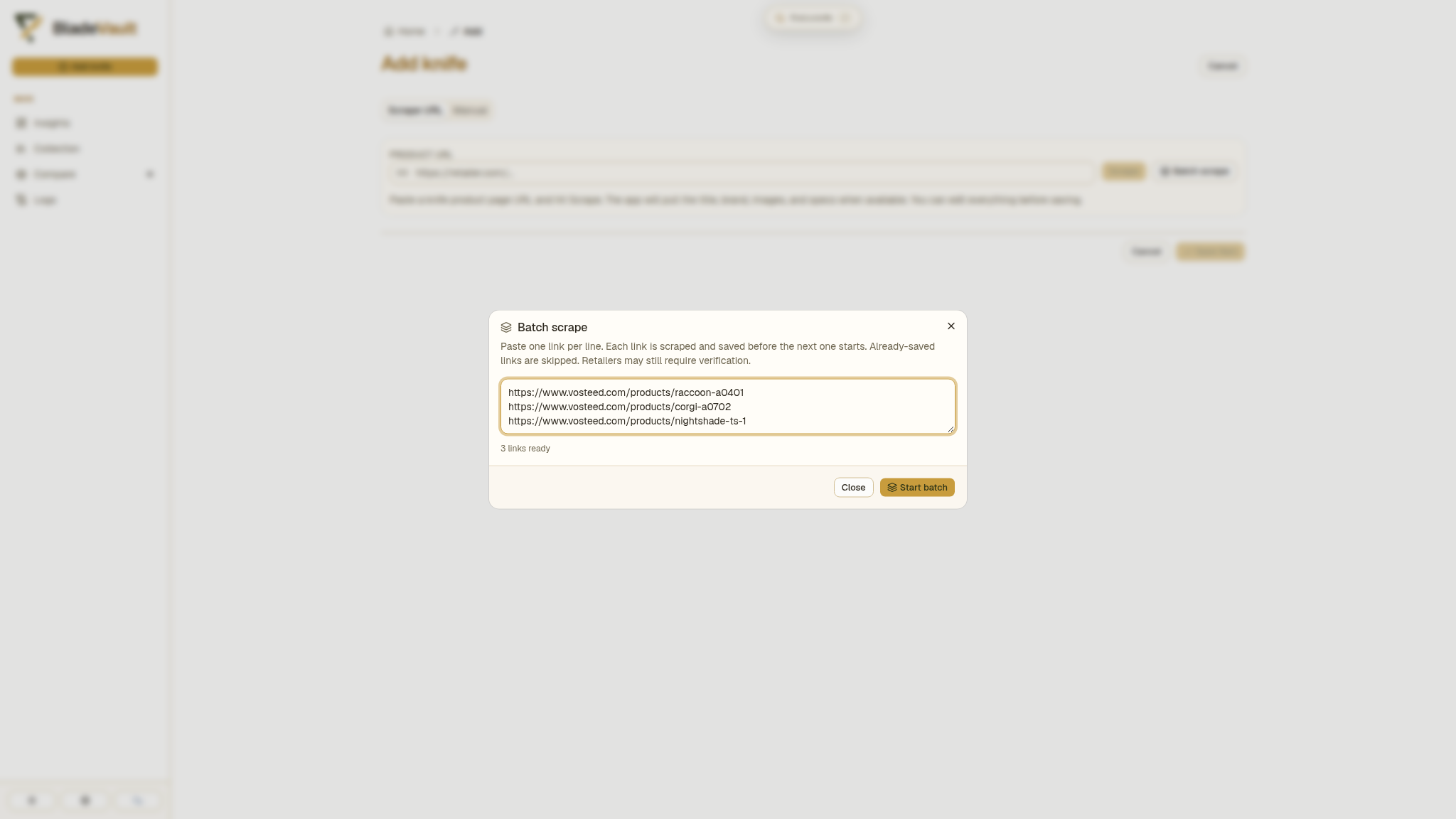
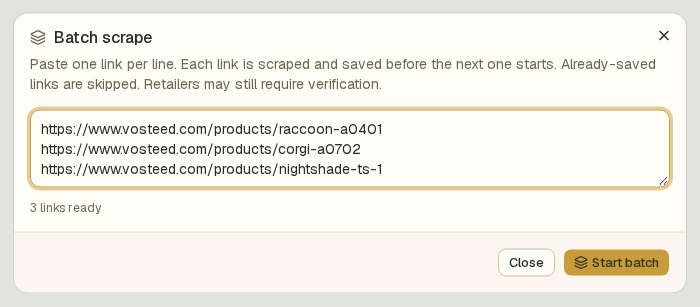
The line below the input shows how many links are ready. URLs already saved in the collection are skipped, and entries that are not URLs are ignored. Review these counts before starting.
2. Start the batch
At the bottom of the dialog, click Start batch:
BladeVault processes one product URL at a time.
3. Watch the batch run
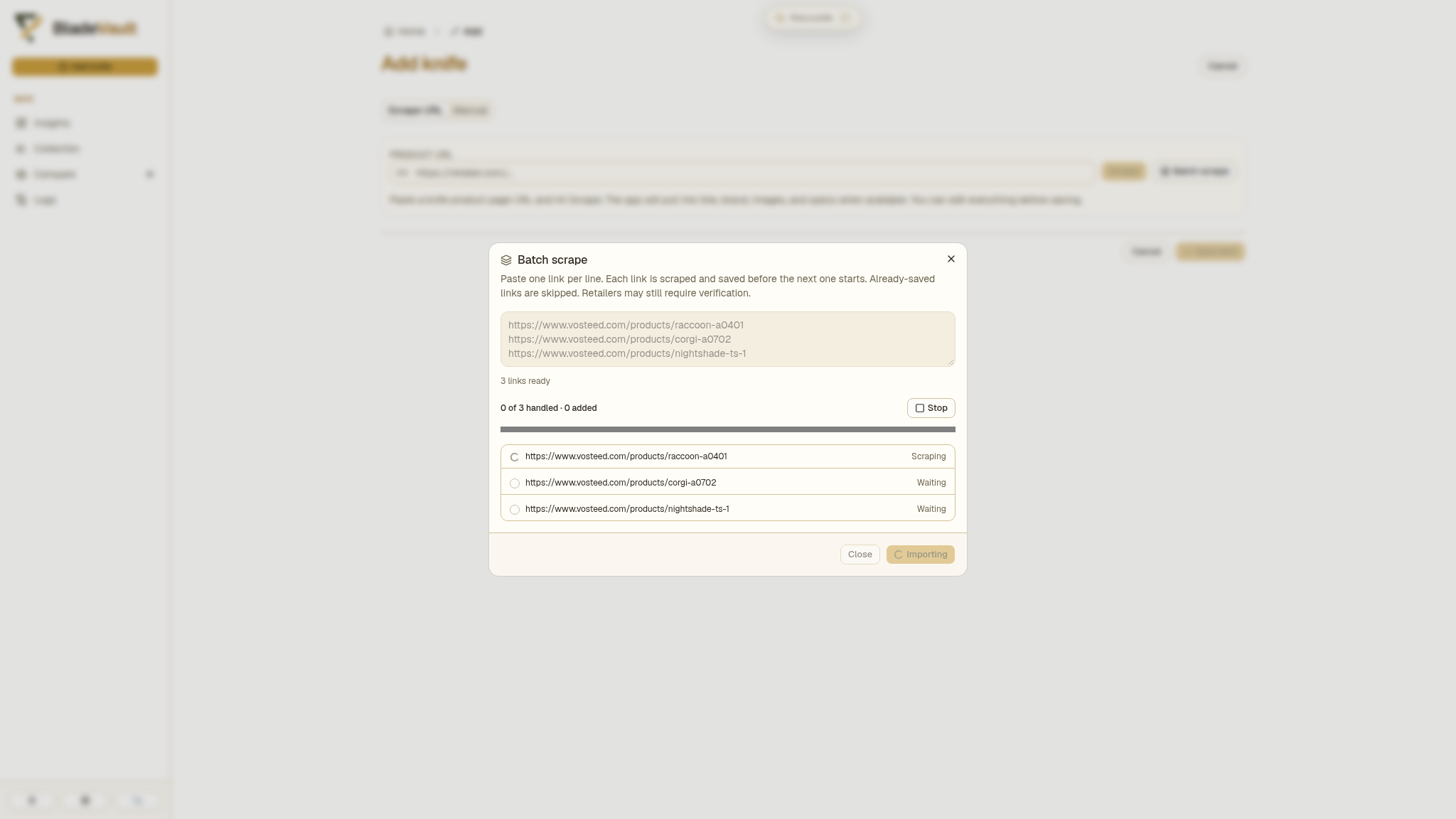
Each row shows its status: Waiting, Scraping, Saving, Saved, Skipped, or Failed. The progress bar shows how much of the list has been handled. Stop finishes the current link and leaves later links waiting. Use Resume batch to continue with the waiting links; it does not retry failed links.
4. Check the result
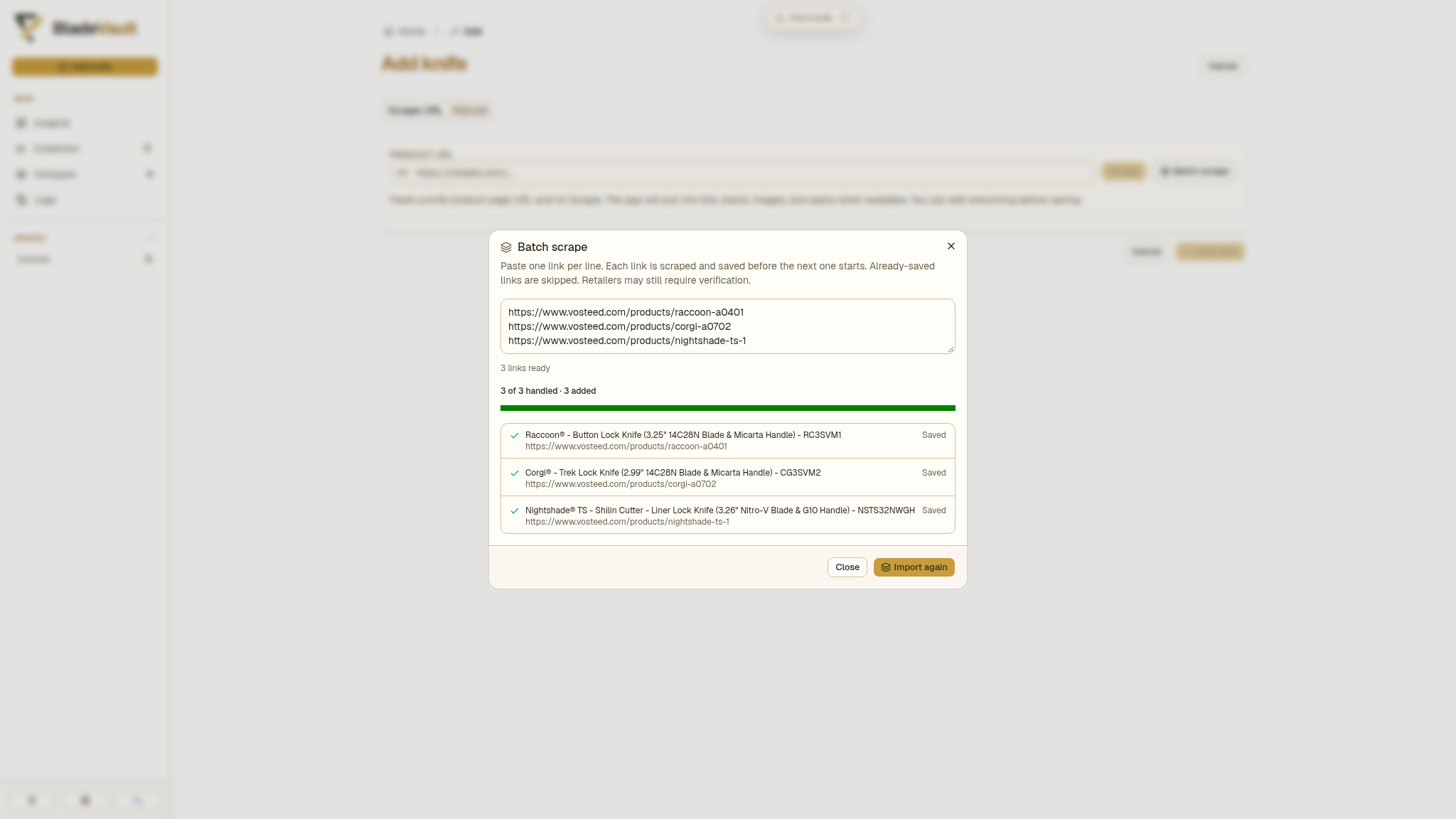
When the run ends, the dialog reports how many links were handled and how many knives were added. A failed link does not stop the batch. The panel below the list shows failed URLs. Use Retry failed to retry only those links, or Copy failed links to keep the list for later.
5. See the knives in the collection
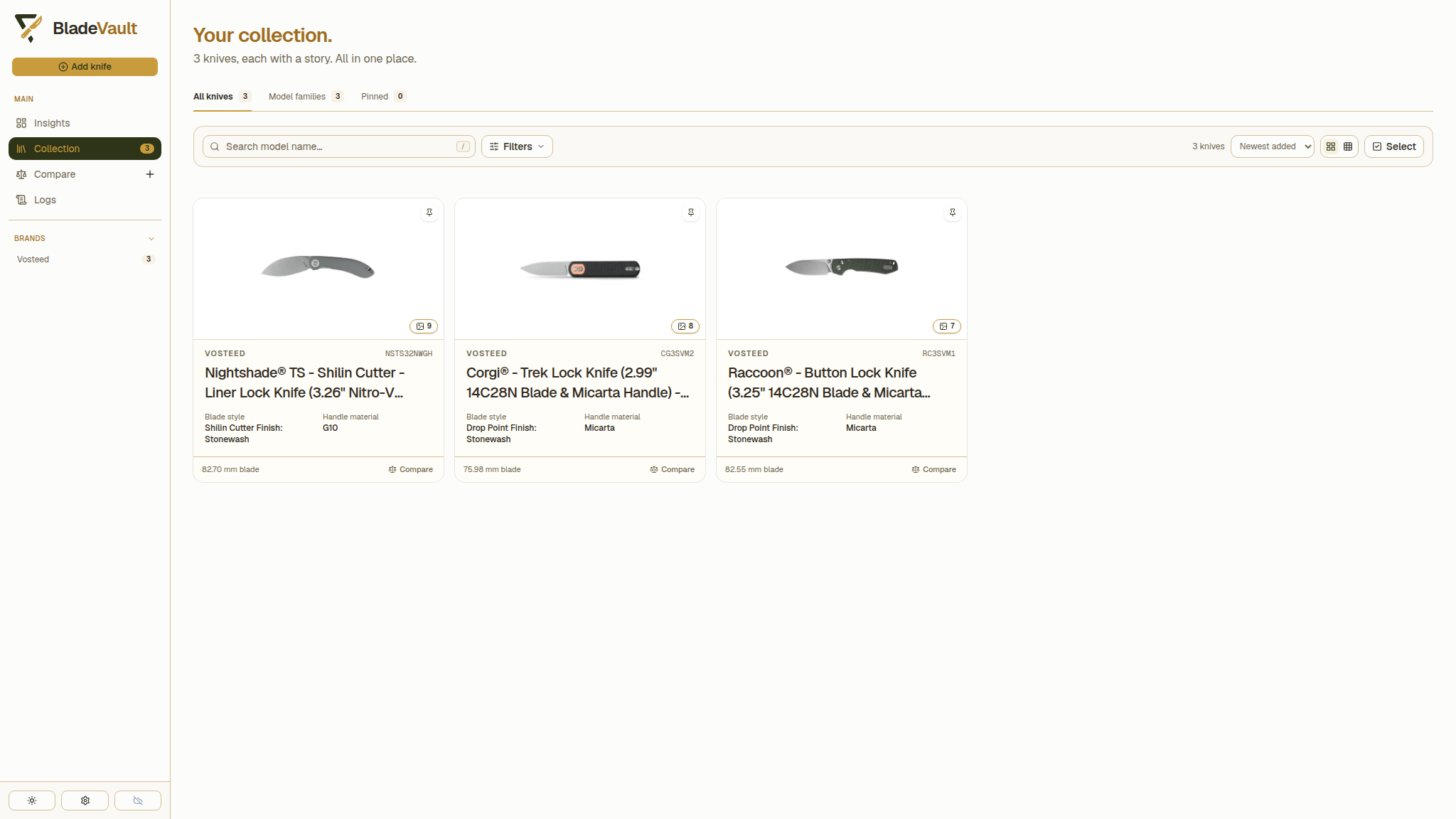
Each imported knife has its own editable record, including specifications, images, and a source link.
Requirements
Batch scrape uses the same browser engine as a single import, so it needs Chromium:
- From source:
npx playwright install chromium. - Docker, desktop, Kubernetes: the shipped image and desktop build already include it.
Next
- Add a knife from a product URL — import a single page or use the interactive fallback.
- Add a knife manually — enter a knife without a product page.